
TL;DR
Remove GPS metadata from a separate upload copy, then inspect the exact file intended for the AI service. Phone sharing settings can exclude location, while desktop tools offer more explicit cleanup. Metadata removal doesn't hide addresses or landmarks visible in the photograph.
A portrait can carry a map location even when no address appears in the picture. The safest way to remove EXIF location data before AI photo upload is to clean a separate copy and verify that exported file, rather than relying on a sharing app to handle privacy. EXIF: Exchangeable image file format is a standard that includes image metadata, such as camera settings, capture time, and sometimes GPS coordinates. For job seekers, freelancers, and creators preparing AI portraits in 2026, a short local check keeps unnecessary location details out of the upload while preserving the original photograph.
Table of Contents
What can EXIF location data reveal?
EXIF location data can reveal where a photograph was taken through embedded GPS coordinates. Depending on the camera and settings, a file may also include altitude, capture time, and device details. These hidden fields are separate from visible clues, such as street signs, office names, or recognizable buildings.
Hidden coordinates versus visible location clues
Embedded metadata and visible image content require different privacy checks.
| Information type | What it can reveal | Appropriate action |
|---|---|---|
| EXIF GPS coordinates | The recorded capture location | Remove GPS fields from the upload copy |
| XMP or IPTC location fields | Place names or other location descriptions | Inspect these metadata groups too |
| Capture date and time | When the photograph was recorded | Remove if unnecessary for the upload |
| Visible addresses or landmarks | Location clues within the picture | Crop, obscure, or choose another photo |
Removing GPS tags doesn't erase the pixels showing a house number. Likewise, cropping an address doesn't necessarily remove embedded coordinates.
Keep the cleanup focused on privacy
A location check needn't become a blanket deletion of every useful field. Copyright, orientation, and color information serve different purposes from GPS tags.
The 2021 survey on media forensics on social media platforms, by Cecilia Pasquini, Irene Amerini, and Giulia Boato, provides background on media forensics. It isn't a guarantee about any current upload service's metadata handling.
Key distinction: Location metadata describes the file; visible location clues belong to the photograph itself.
How can location metadata be removed on each device?
- Create a separate upload copy and retain the original.
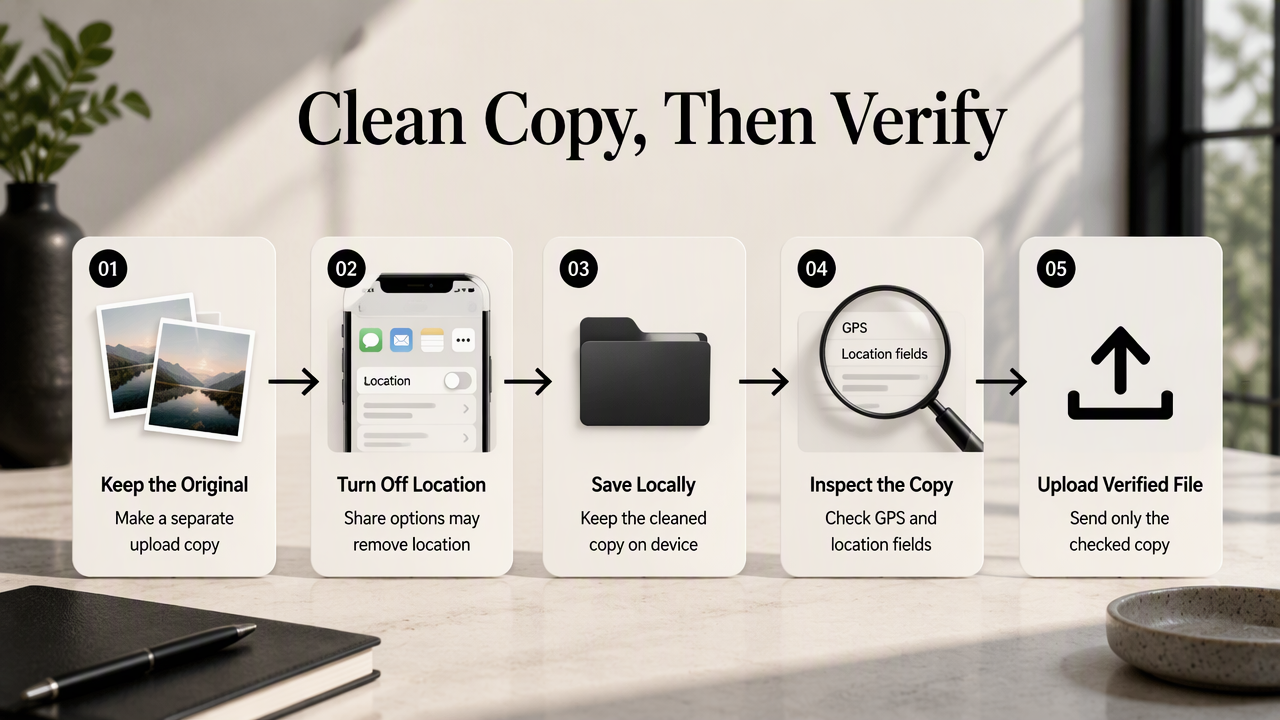
- Use the device's location-removal or export controls where available.
- Save the cleaned file locally instead of uploading it immediately.
- Inspect the saved copy for GPS and descriptive location fields.
- Upload only the verified file.
iPhone: exclude location from the shared copy
In Apple Photos, open the photograph, tap Share, then Options, and turn off Location when that control is available. Save or send the resulting copy through a destination that supports the chosen sharing options.
For a separate working image, duplicate the photo first. On supported iOS versions, open its information panel, choose Adjust Location, and select No Location. Interface labels can vary by version.
Check the saved file rather than only the Photos library entry. Also, disabling location access for Camera affects future captures; it doesn't clean older photographs.
Android: use supported export controls
Android cleanup depends on the manufacturer, gallery app, and version. Open the photo's details or sharing settings and look for a control such as Remove location data. If offered, apply it to a saved or shared copy.
A setting that hides a location in a gallery interface shouldn't be treated as proof that the exported file is clean. When no suitable control exists, transfer a copy to a computer and use a local metadata tool. Turning off camera location tagging helps with future photos only.
Windows: remove personal properties from a copy
In File Explorer, right-click the image and select Properties > Details > Remove Properties and Personal Information. Choose Create a copy with all possible properties removed, or select specific removable properties, including GPS fields.
Windows may not expose every metadata field in every image format. Inspect the output independently, especially after converting HEIC files to JPEG.
Mac and ExifTool: clean a local upload file
On macOS, open the copy in Preview, choose Tools > Show Inspector, and look for the GPS information panel and Remove Location Info control. Availability depends on the file and macOS version.
For a local JPEG workflow, ExifTool can remove EXIF GPS tags with exiftool -gps:all= upload-copy.jpg. Broader cleanup uses exiftool -all= upload-copy.jpg, but may remove orientation, color, and attribution metadata too. Rotate and export the image correctly first.
ExifTool normally creates an _original backup. Keep that backup out of the upload selection. Neither command replaces inspection for location information stored elsewhere.
How can a cleaned upload copy be verified?
A cleaned upload copy should be verified by inspecting the exact saved file for GPS coordinates and location descriptions, then checking the photograph for visible clues. A blank map in one app is helpful but not conclusive. Verification belongs after the final export, conversion, or edit and before upload.
Check the file that will actually leave the device
Open the exported file in a metadata viewer. With ExifTool, exiftool -a -G1 -s upload-copy.jpg lists readable metadata with group names, making duplicate or differently stored fields easier to spot.
Use this final checklist:
- GPS: No latitude, longitude, altitude, or other unwanted GPS fields remain.
- Other location fields: Review XMP and IPTC entries for city, country, address, or location descriptions.
- File selection: The chosen image is the cleaned copy, not the original or backup.
- Visible content: Inspect signs, badges, house numbers, reflections, and backgrounds.
- Image quality: Confirm correct rotation, color, crop, and resolution.
No GPS fields means no readable GPS fields were found by that inspection. It doesn't prove that the photograph contains no identifying information.
Separate file cleanup from service privacy
Metadata removal addresses the file, not account details, network information, storage duration, or model-training policies. Those require a separate review of the service's current terms.
The 2021 paper on cloud and edge computing forensics, by Vijay Prakash, Alex Williams, and Lalit Garg, examines forensic challenges in those environments. It provides broader context, not evidence about a particular AI portrait provider.
How Looktara fits the cleaned-photo workflow
A verified upload copy gives an AI portrait workflow a clear starting point: a suitable source photograph with only the information intended for sharing. A well-lit face, accurate appearance, and appropriate framing remain useful after location cleanup.

Prepare portraits around the intended profile
Looktara is a relevant next step for people preparing AI-generated personal or professional imagery. Local cleanup can be completed before selecting source photographs for that workflow.
For fitness coaches, the intended destination helps define the creative brief:
- LinkedIn-focused fitness imagery suits a professional-profile brief.
- Instagram-focused fitness imagery suits a social-content brief.
Keep a clearly named upload folder separate from the original photo library. That simple organization makes reviewed files easier to select when preparing a new headshot or content batch.
FAQ: GPS cleanup before AI portrait uploads
GPS cleanup concerns both the exported file and the photograph's visible content.
Final checkpoint: Verify the final upload copy, not an earlier version.
Does removing EXIF reduce photo quality?
Removing metadata alone generally doesn't change image pixels, so it needn't reduce sharpness or resolution. However, an app may recompress the picture while exporting it. Broad metadata deletion can also affect orientation or color interpretation. Inspect the cleaned image visually and retain the original for future edits.
Does a screenshot reliably remove location information?
A screenshot creates a new image rather than preserving the original camera file, but it isn't a complete privacy workflow. It may reduce resolution and still show recognizable location clues. Screenshot files can also contain metadata of their own. A verified export is preferable when portrait quality matters.
Can an AI system infer location without GPS tags?
An image-analysis system may infer a location from landmarks, signs, architecture, or readable text even when GPS metadata is absent. Accuracy depends on the image and system. Removing metadata reduces one source of location information; selecting a neutral background addresses a different source. Neither step guarantees anonymity.
Should all metadata be deleted before an AI upload?
Not necessarily. Selective removal can preserve useful orientation, color, and copyright fields while deleting location information. A broader cleanup may suit a disposable upload copy, provided the exported appearance is checked. The appropriate choice depends on the file format, the metadata present, and the information intended for sharing.
Conclusion
Before the next portrait session, create a dedicated upload folder, remove EXIF location data before AI photo upload, and verify every final file. Keep originals elsewhere and choose backgrounds without identifying details. Once those copies are ready, visit looktara.com to prepare a Looktara portrait workflow around the intended professional profile or content brief.
Generated by EarlySEO.com