
TL;DR
Compare the original download with the uploaded avatar before editing: softness in both points to the source, while upload-only blur points to resizing or compression. Export once from the original, test the destination's current requirements, and regenerate only when facial detail is already missing.
A sharp portrait can become a soft avatar without the AI generator changing a single pixel. An AI profile photo blurry after uploading needs a comparison test, not an automatic sharpening pass. LinkedIn, Instagram, dating apps, and other destinations may resize or recompress uploaded images, while screenshots and repeated exports can introduce losses earlier.
Upload blur: A visible loss of image detail between a saved source portrait and its displayed profile version.
The useful distinction is simple: generation defects exist in the original file; upload-related softness appears later. Comparing equivalent views helps identify which stage needs attention.
Table of Contents
Why is an AI profile photo blurry after uploading?
An AI profile photo blurry after uploading usually reflects platform resizing, compression, an overly tight crop, or a lower-quality upload file. If the original portrait also looks soft, the cause predates the upload. Comparing the downloaded original with the published avatar at similar display sizes separates these two situations.
A decision tree that separates source and upload issues
The first useful checkpoint is the downloaded image, not the generator's preview or a screenshot.
- Inspect the original at 100% zoom. Soft eyes or smeared hair suggest a source-image problem.
- Compare a local avatar-sized crop. If this also looks soft, inspect the crop and available pixels.
- Compare the published version at that same size. New losses point toward the upload or display pipeline.
- Check another browser or device. Differences suggest a display, caching, or loading issue rather than permanent file damage.
A small avatar enlarged across a laptop screen will naturally look less detailed. That comparison alone doesn't establish an upload problem.
Visible clues and the next useful test
Different artifacts suggest different checks, although several causes can overlap.
| Visible clue | Likely stage | Next test |
|---|---|---|
| Eyes look soft in the original download | Generation or source quality | Inspect another original output |
| Original is clear; avatar loses hair detail | Platform resizing or compression | Compare two controlled exports |
| Face becomes soft after a tight crop | Insufficient pixels in the crop | Try a wider crop |
| Screenshot looks worse than the download | Capture or prior resizing | Upload the actual downloaded file |
| One device shows an older portrait | Cached display | Recheck after refreshing elsewhere |
The comparison should change one variable at a time. Otherwise, a sharper result may arrive without revealing which adjustment helped.
How can upload blur be fixed step by step?
Upload blur can often be reduced through a controlled export-and-upload workflow:
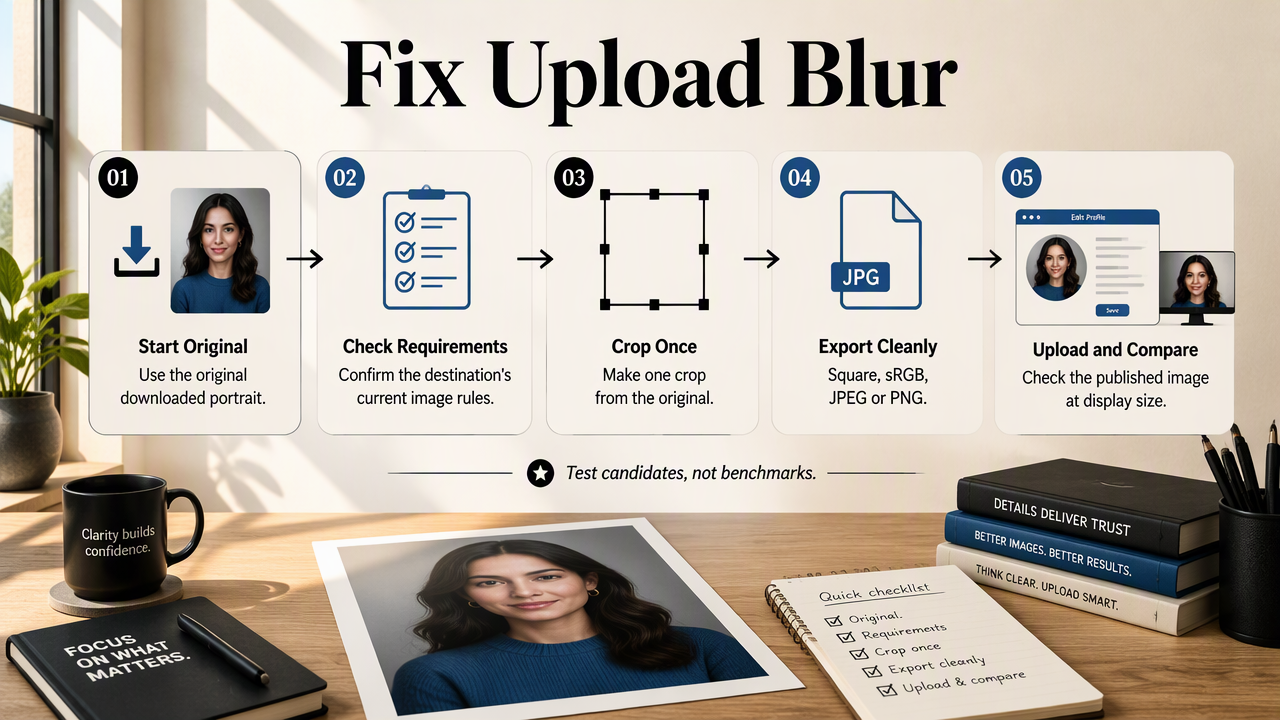
- Start with the original downloaded portrait.
- Check the destination's current image requirements.
- Make one crop from the original.
- Export a high-quality supported file.
- Upload through the normal profile editor.
- Compare the published result at its intended display size.
Export settings to test on the destination platform
A practical starting export uses a square crop, an sRGB color profile, and a supported format such as JPEG or PNG.
The values below are test candidates, not measured platform benchmarks. No destination-specific test results were supplied, so treating them as universally proven settings would be misleading. Current upload requirements take priority.
| Setting | Starting candidate | Controlled alternative |
|---|---|---|
| Dimensions | 1024 × 1024 pixels, if permitted | Destination's recommended dimensions |
| JPEG quality | Around 90, where supported | Higher quality within the file limit |
| Format | High-quality JPEG | PNG, if accepted |
| Color profile | sRGB |
Convert an existing non-sRGB file |
| Crop | Face centered with breathing room | Slightly wider framing |
A larger file isn't automatically sharper after upload. The platform may resize both candidates to the same final dimensions. PNG can avoid another lossy export before upload, but it cannot prevent a destination from recompressing the image.
Before-and-after comparisons that reveal the cause
A useful before-and-after pair keeps the portrait, viewing size, and destination constant while changing one preparation step.
- Screenshot versus original: Compare a captured preview with the downloaded portrait. Improvement with the download identifies an avoidable intermediate step.
- Tight versus wider crop: Compare a face-filling crop with more space around the head. Better detail in the wider version suggests the tight crop demanded too much enlargement.
- Repeated exports versus one export: Compare an edited copy with a fresh export from the original. Improvement supports rebuilding the upload file from the source.
Record the filename, dimensions, format, and visible result for each attempt. Assess eyes, hair edges, and glasses rather than file size alone. Keep the best-performing export for that destination; another app may need a separate version.
When should a portrait be regenerated rather than sharpened?
A portrait should be regenerated when the original contains missing facial detail, inconsistent features, or defects that sharpening cannot resolve. Mild export softness may respond to restrained sharpening, but an unclear eye or malformed glasses require a better source. The decision depends on the original, not the uploaded thumbnail alone.
Source defects that deserve a replacement
Regeneration is more appropriate when image detail is structurally wrong rather than merely soft.
- Eye shapes or catchlights are inconsistent.
- Teeth, earrings, or glasses have merged edges.
- Hair blends unnaturally into the background.
- Skin texture appears painted at normal viewing size.
For a new portrait, a simpler scene can make review easier: one subject, a clear face, straightforward lighting, and an uncluttered background. Every replacement still needs inspection; a different prompt doesn't guarantee a better result.
Sharpening should preserve identity, not invent it
Sharpening increases edge contrast; it doesn't recover verified facial information that never existed in the source.
Apply a light adjustment after resizing, then inspect the intended avatar size. Halos around hair, crunchy skin, or unusually bright eye edges signal that the adjustment has gone too far. AI restoration may synthesize details, so apparent crispness deserves an identity check.
The 2022 survey Countering Malicious DeepFakes: Survey, Battleground, and Horizon examines manipulated imagery and detection. It isn't an upload-settings study and supplies no export benchmark here. Its topic is relevant to the broader distinction between convincing synthetic detail and faithful representation.
A credible profile portrait should remain recognizable, not merely look sharper.
A destination-ready workflow with Looktara
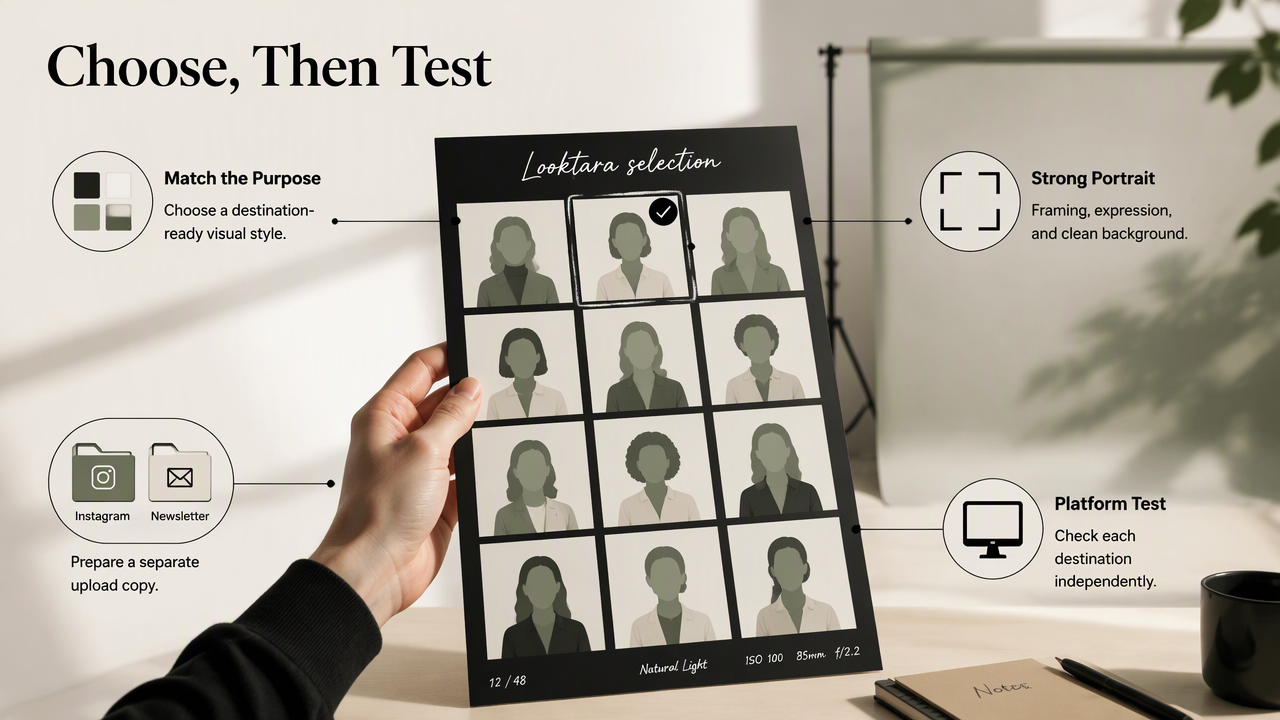
Looktara fits into the portrait-selection stage, while destination testing remains a separate quality-control step. For professional profiles, the strongest workflow begins with a suitable image, then prepares a distinct upload copy for each platform. Framing, expression, and a clean background matter alongside technical sharpness.
Choose imagery for the profile's actual setting
A destination-specific portrait helps align visual style with the profile's purpose.
Fitness professionals can explore Instagram profile imagery for a social-facing presence. Those maintaining subscriber relationships can consider newsletter profile portraits, while visual discovery accounts have a dedicated Pinterest profile-image option.
These pages address portrait use cases, not guaranteed upload performance. The practical sequence remains:
- Select an image that represents the person and role.
- Keep an untouched original for future exports.
- Prepare and verify each destination's upload separately.
The Looktara platform can be explored at looktara.com when a fresh portrait is the next step. A consistent expression and recognizable appearance provide a useful foundation across profiles.
FAQ: File choices, dimensions, and display quality
The most useful file choice depends on the destination's accepted formats and the published result, not a universal format rule.
Is PNG better than JPEG for profile pictures?
PNG preserves image data without lossy compression during export, while JPEG generally produces smaller photographic files. Neither guarantees a sharper published avatar because the destination may resize or recompress both. Compare a high-quality JPEG and a PNG from the same original, provided both meet the platform's current requirements.
Does changing DPI fix a blurry profile photo?
Changing DPI metadata alone doesn't add image detail. For screen-based profile pictures, pixel dimensions and the displayed crop are the relevant checks. A 400 × 400-pixel image remains the same pixel count after a DPI change unless software also resamples it. Inspect actual dimensions rather than relying on print-resolution labels.
Should a RAW file be uploaded instead?
RAW isn't a practical default for profile uploads because many profile editors expect standard image formats. The destination's accepted-file list should decide compatibility. A high-quality supported export from the original is the safer starting point. Advice to upload RAW shouldn't be treated as a platform-neutral solution to compression.
Why does the photo look sharp when opened but soft as an avatar?
The full image and avatar may be different versions with different dimensions, crops, or compression. Small circular displays also provide less room for facial detail. Compare both at equivalent sizes before judging quality. If only the small avatar looks softer, a closer but well-supported crop may improve facial readability.
Conclusion
The next step for an AI profile photo blurry after uploading is a controlled comparison: original download, one clean export, and the published avatar at matching sizes. Save the export that performs best on the actual destination.
For a refreshed professional portrait, Looktara offers a relevant starting point. Select a suitable image, preserve the original, and verify the final profile display before using it across professional accounts.
Generated by EarlySEO.com